Click Download
Click the download button below to grab the installation file.

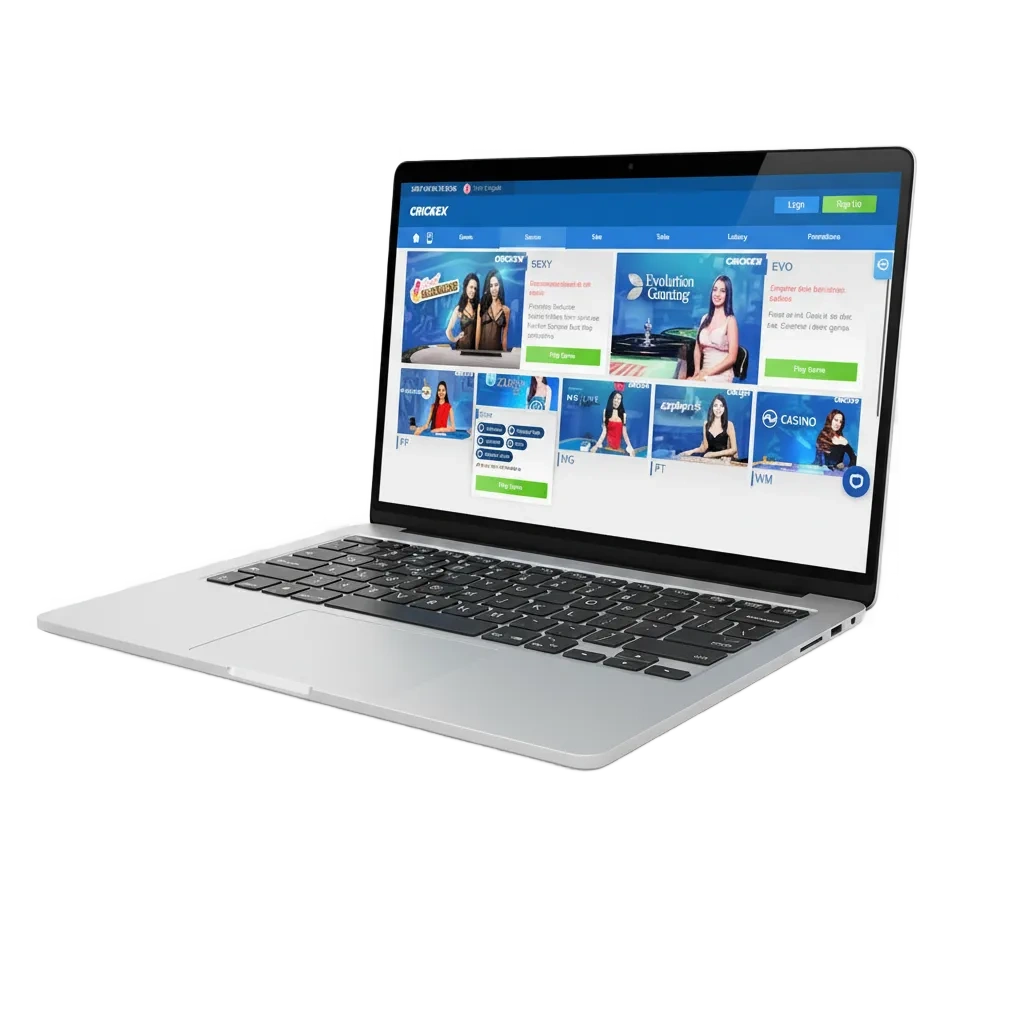
Install the Crickex PC app to get instant access to sports betting, a live casino, slots, and a variety of table games. This free software for Windows and macOS mirrors everything you find on the website but boosts performance with faster loading times and a distraction-free environment.
| Available Languages | English, Bengali, Hindi, Urdu |
| Category | Available Games: Sports Betting, Live Casino, Slots, Table Games, Roulette, and Interactive Game Shows |
| Compatible with Windows | Windows 10 (64-bit), Windows 11 |
| Compatible with macOS | Compatible with macOS 12 Monterey, 13 Ventura, and 14 Sonoma; fully optimized for both Intel and Apple Silicon chips. |
Before you install, here is a breakdown of the benefits and a few considerations. This section outlines exactly what the Crickex PC application offers.
| Pros | Cons |
|---|---|
| Rapid page loads and near-instant bet execution | Requires a small amount of disk space and a local installation |
| Consistent, lag-free performance during high-stakes live events | Updates may need a restart |
| Full-screen casino gameplay | Works on desktop only |
| Support for multiple windows to monitor different odds and markets simultaneously | |
| Lower data use after first install | |
| Keyboard and mouse control for speed | |
| Real-time desktop notifications for match scores and special bonuses |
The Windows version of Crickex is designed for modern systems, typically requiring at least 4 GB of RAM, 500 MB of available storage, and a reliable internet connection. Follow these simple steps to get set up in just a few minutes.
Click the download button below to grab the installation file.
Pick a convenient folder on your hard drive to save the setup file.
Launch the installer by double-clicking the file, grant the necessary permissions, and accept the user agreement.
Select where you want the app installed and complete the setup wizard.
Launch the app via the desktop shortcut, then sign in or create a new account.
For easier access, pin the app to your taskbar and configure your notification preferences.
Whether you use an Intel-based Mac or one with Apple Silicon, the Crickex app is fully supported. It installs quickly and is compatible with the latest macOS versions.
Click the button below to download the .dmg installer.
Open the .dmg file by double-clicking it to mount the disk image.
Drag the Crickex icon directly into your Applications folder.
Launch the app from your Launchpad. If macOS Gatekeeper blocks it, simply go to System Settings > Privacy & Security to allow the app to run.
Log into your existing account or register a new one to start playing and betting.
Keeping your software current ensures the best security and peak performance. Always install the latest updates to benefit from bug fixes and new features.
Simply double-click the desktop icon to enter the platform.
Go to Menu > Settings > Updates.
Go to 'Check for updates' and click 'Install' once a new version is detected.
If the app asks you to restart to apply the changes, close it and reopen it.
Registering through the desktop app gives you full access to sports markets, the live casino, and region-specific bonuses. Once signed up, you can deposit BDT and start playing immediately.
Launch the app on your computer.
Click the 'Register' or 'Sign Up' button on the main login screen.
Join using your phone number or email; fill in your personal details, create a secure password, and agree to the terms of service.
Verify your identity via the SMS or email link, then log in and set your responsible gaming limits in the profile section.

Installing the app isn't mandatory. You can access the same betting markets, live odds, and game library directly through the official website. Just use any modern web browser. This is the perfect choice if you are using a public computer or prefer not to download software.
Our support team is available around the clock to assist desktop users. Choose your preferred contact method from the list below.
Yes. There are no download fees.
Not at all. Your credentials work across all platforms, including the PC app, mobile app, and the website.
A connection of 5 Mbps or higher is recommended for smooth live streaming. Lower speeds are sufficient for checking odds and results.
Yes, you can add an extra layer of security by enabling 2FA in the Profile > Security settings.
The app requires Windows 10 or 11. If your system is older, you can still enjoy all features by using the official website in your browser.
Updated: